
Azure Dev Ops is one of the leading Dev Ops tools of choice for most organizations trying to cover the entire application life cycle. One of the key requirements for Dev Ops tools is to integrate and provide a way to maintain MuleSoft code quality and security for the applications going through the Dev Ops platform. In this article, we are going to cover the steps required to set up Azure Dev Ops to use MuleSoft code quality analysis using IZ Analyzer.
Background:
MuleSoft is a key integration platform adopted by more and more organizations and importance of MuleSoft code quality is more important than ever. Check out https://medium.com/@chethanbabu.r/why-automated-code-quality-should-be-the-number-one-priority-for-mulesoft-applications-307bb16d4ae1 for understanding why MuleSoft code quality should be the number one priority for mule applications. Since we are looking to integrate MuleSoft code quality into Dev Ops and Azure Dev Ops is a key platform used, this article tries to show how to set up MuleSoft code quality for mule application end to end using Azure Dev Ops and IZ Analyzer.
Let’s get started!
Step 1: Install SonarQubeÔ extension in your Azure Dev Ops Organization
SonarQubeÔ provides an excellent plugin on Azure market place which makes it easier to integrate code analysis into any pipeline or build. You can find the plugin at https://marketplace.visualstudio.com/items?itemName=SonarSource.sonarqube
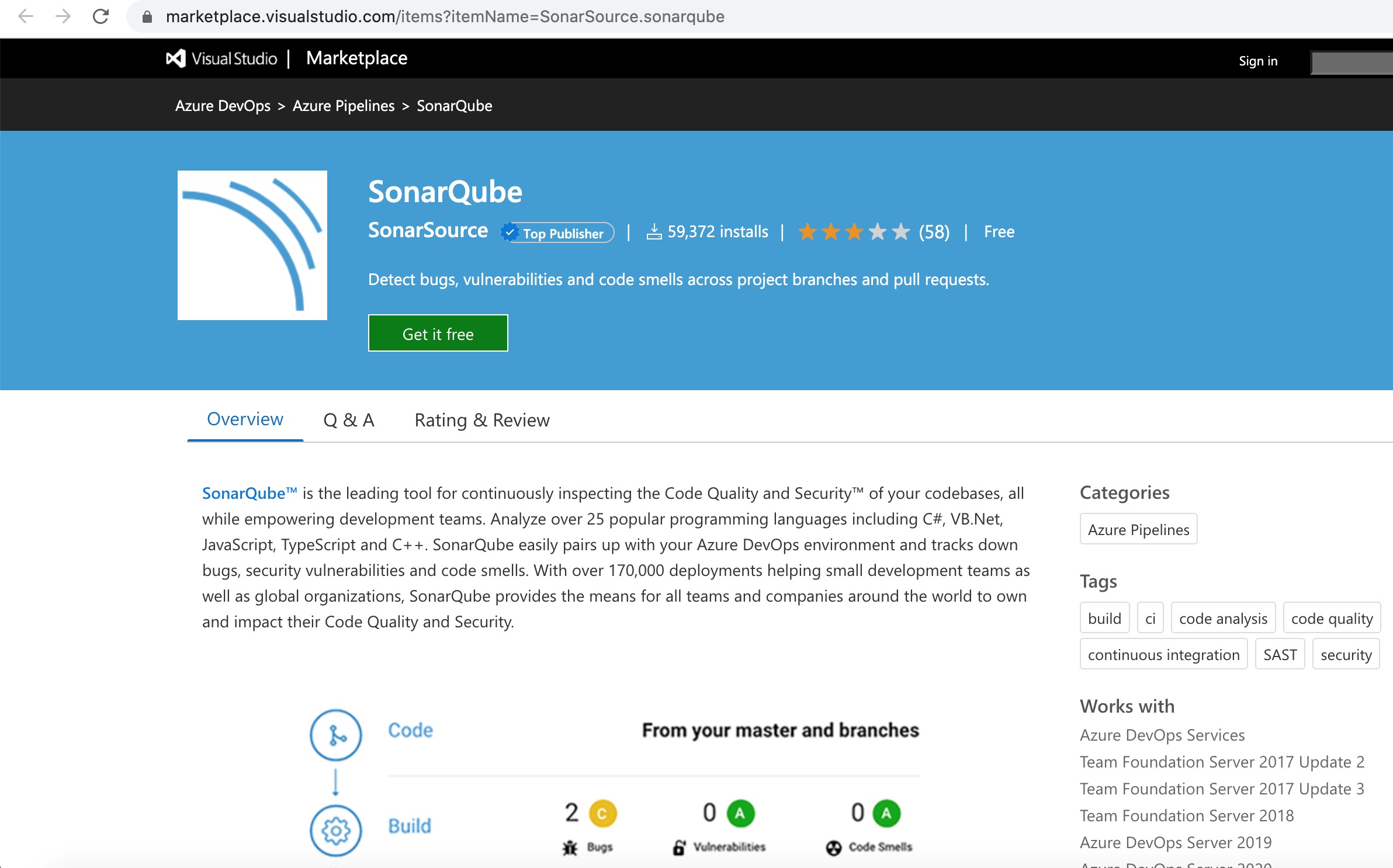
When you click on the Get it free button, it will take you to the organization selection screen. And based on your access level, it lists the organizations available and you can install it into the organization that you have access to.
Once installed, you can find it under your organization settings -> Extensions to make sure that it’s properly installed.
Step 2: Create new Azure Dev Ops Project
If you already have a project that you want to use for this, please skip to the next step.
Create new Azure Dev Ops project under your organization. You can enter details as shown below to create a sample project which we will use to create azure dev-ops project.

Step 3: Create a repository for Mule Project in Azure Dev Ops
If you are using and want to use non Azure repository (like Bitbucket or Github), you can skip to the next step.
We are going to import an existing Mule repository into Azure. Select import repository option under Repos -> File section of Azure dev ops as shown below.

You enter the details of the source repository and connection details and select Import.
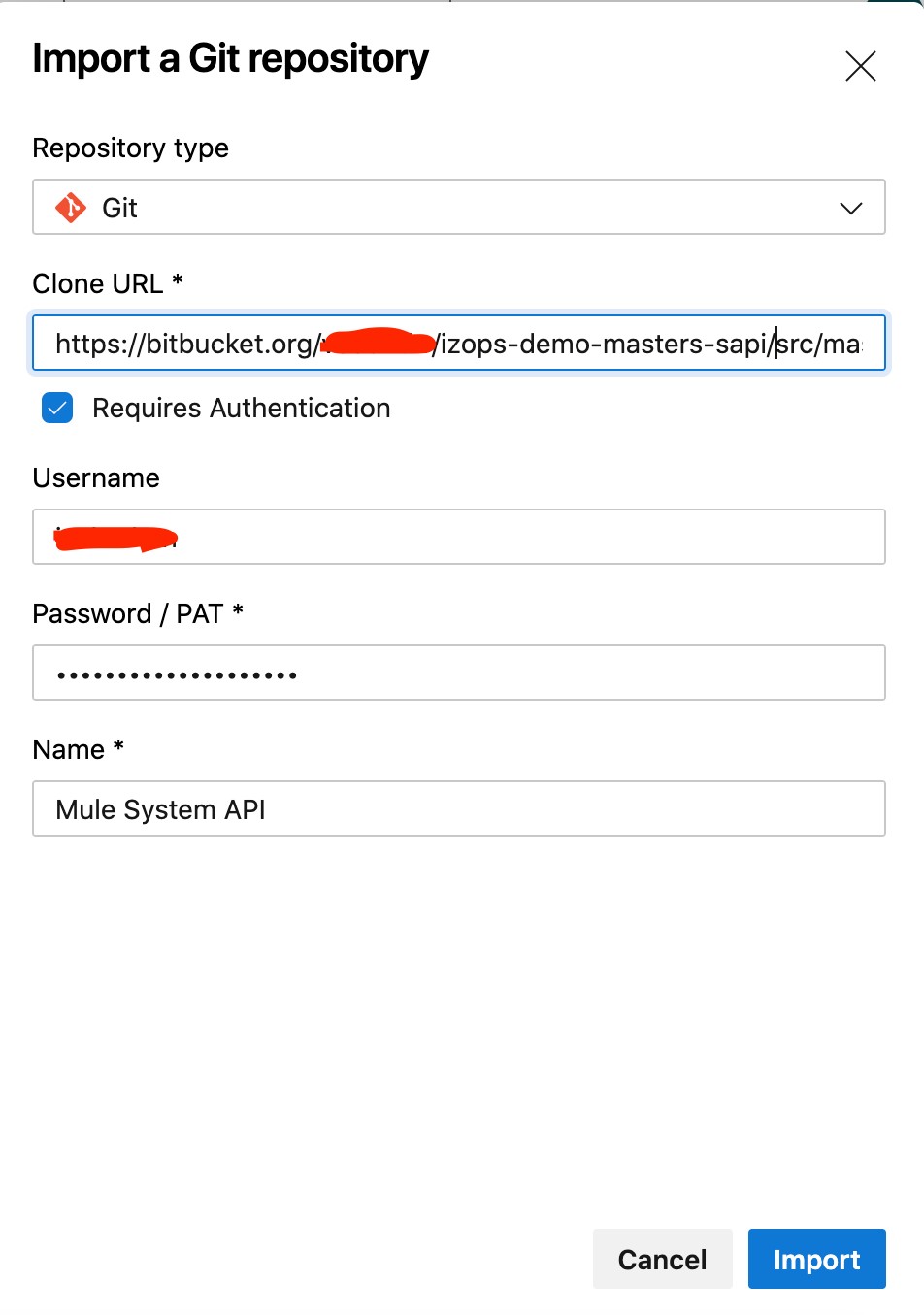
Once the project is imported, we are ready to set up service connection to IZ Analyzer to perform code analysis.
Step 3: Generate Security token for Analyzer
Go to https://analyzer.integralzone.com/izabout
Click on Sign In on the top right of the navigation and select the way to login to Analyzer:
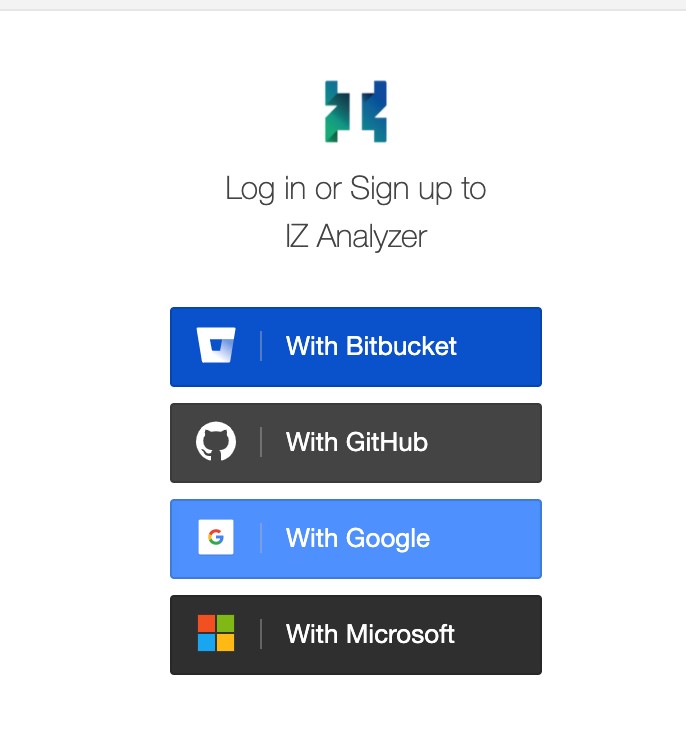
Once logged in, click on your name (which is on the top right of the screen) and select My Account option.
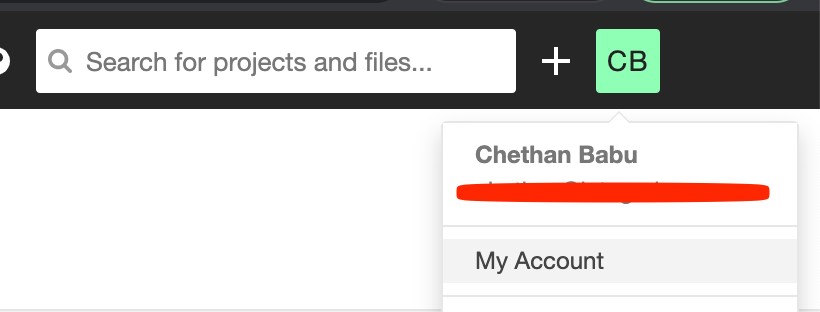
Select Security option under My Account and enter a name to generate a token like Azure Dev Ops Token. Click on Generate button.

A security token should be generated and displayed. Copy the token – since it will be needed in Azure Dev Ops security connection set up later.

Step 4: Create new Analyzer Project
If you already have an organization defined and you know the details, you can skip this step.
Click + on the top right of the home screen and select option to create organization. Enter a name for the organization and click Continue.

Confirm the organization created with free subscription and select Create Organization.

In the generated organization, select option to analyze new project:

Enter a unique project key and display name. Click Set up.
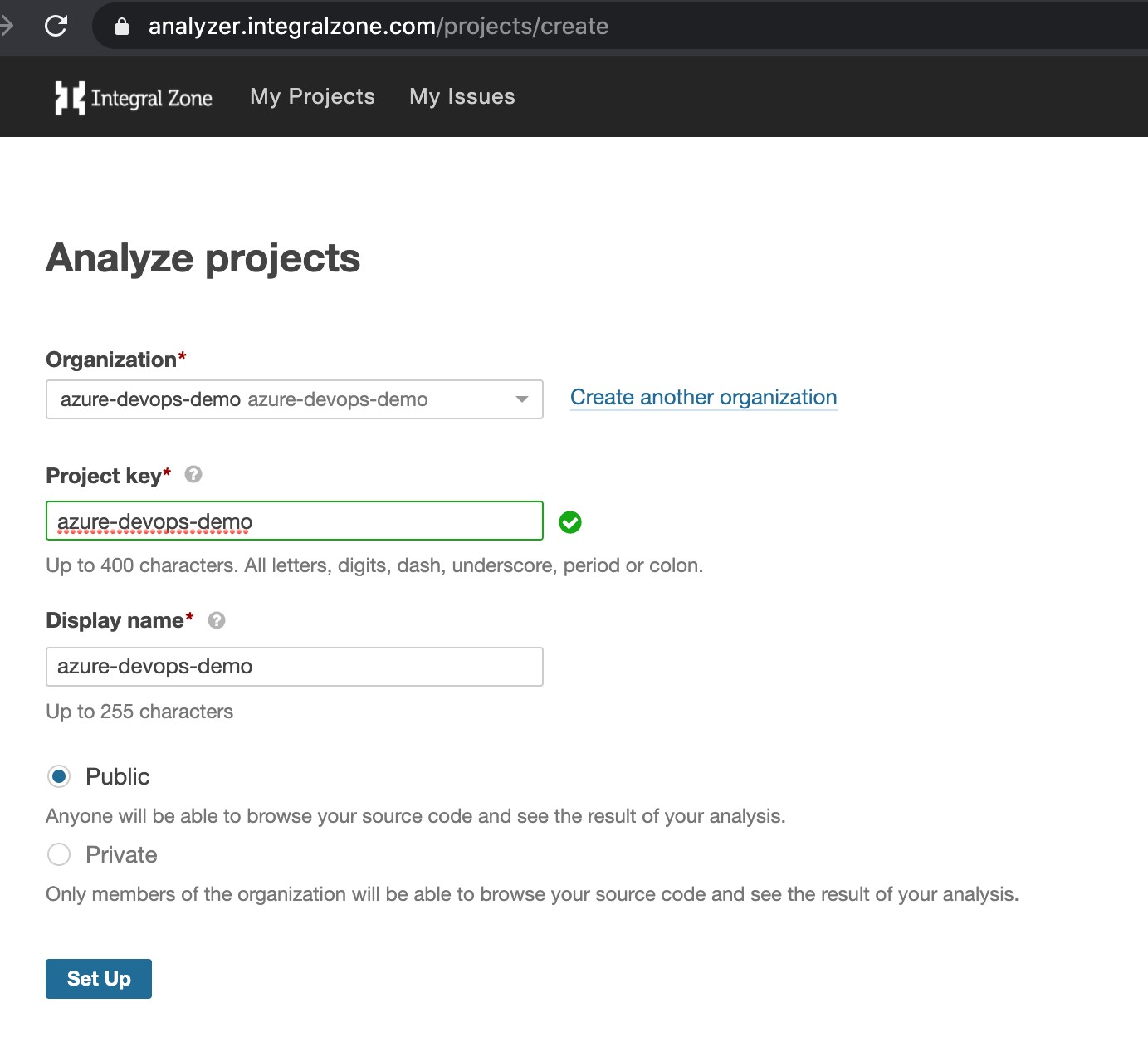
Enter the security token generated in the previous step and click Continue

Select the project main language – either Mule or Other from the option list. It should show you the commands to use and the parameters already filled (for example sonar.organization, sonar.exclusions, etc). Use them in Azure Dev Ops pipeline next.
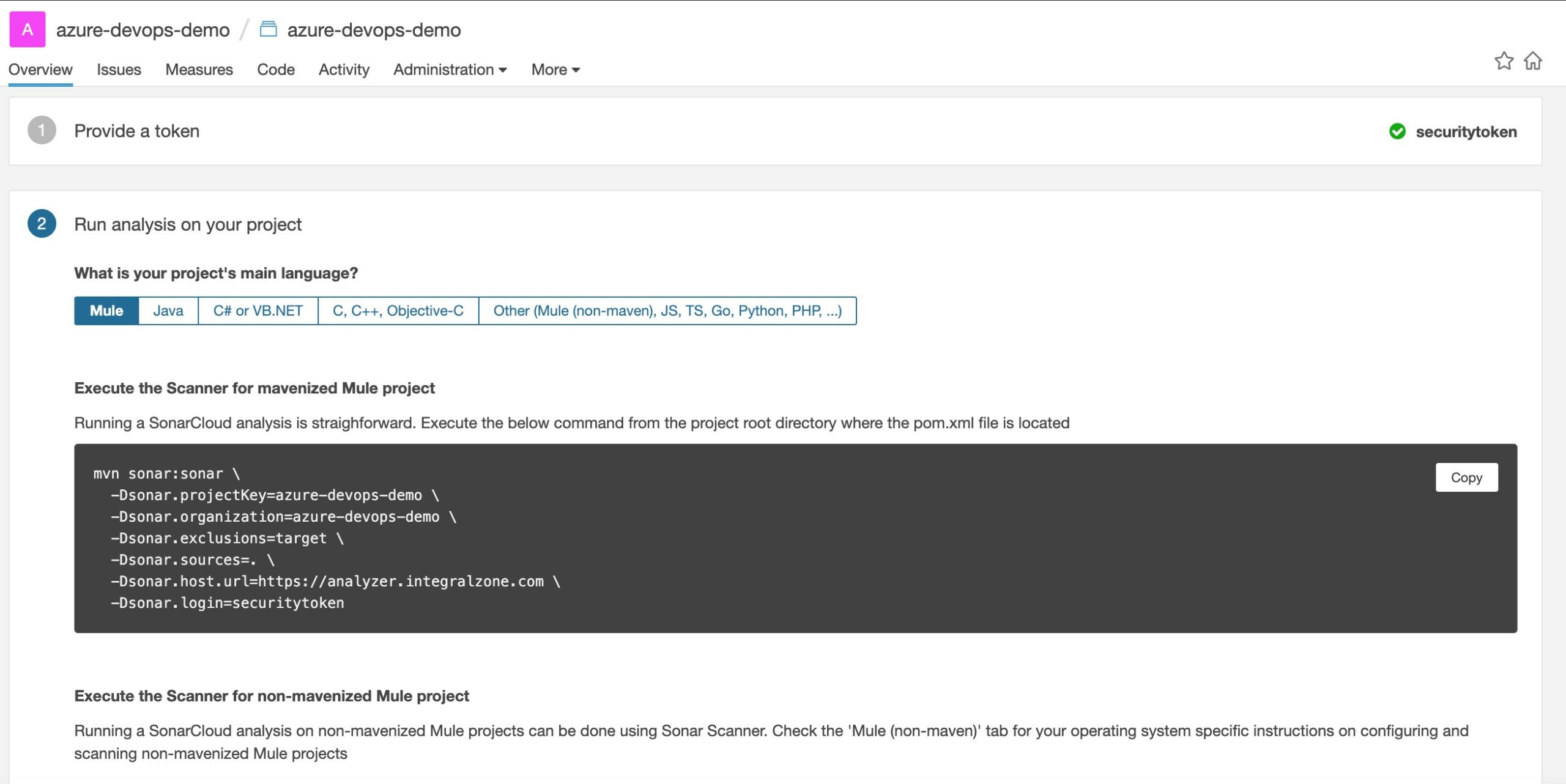
Step 5: Create Service Connection to Analyzer
In Azure Dev Ops, go to project settings -> Service connections to create a new service connection to IZ Analyzer.
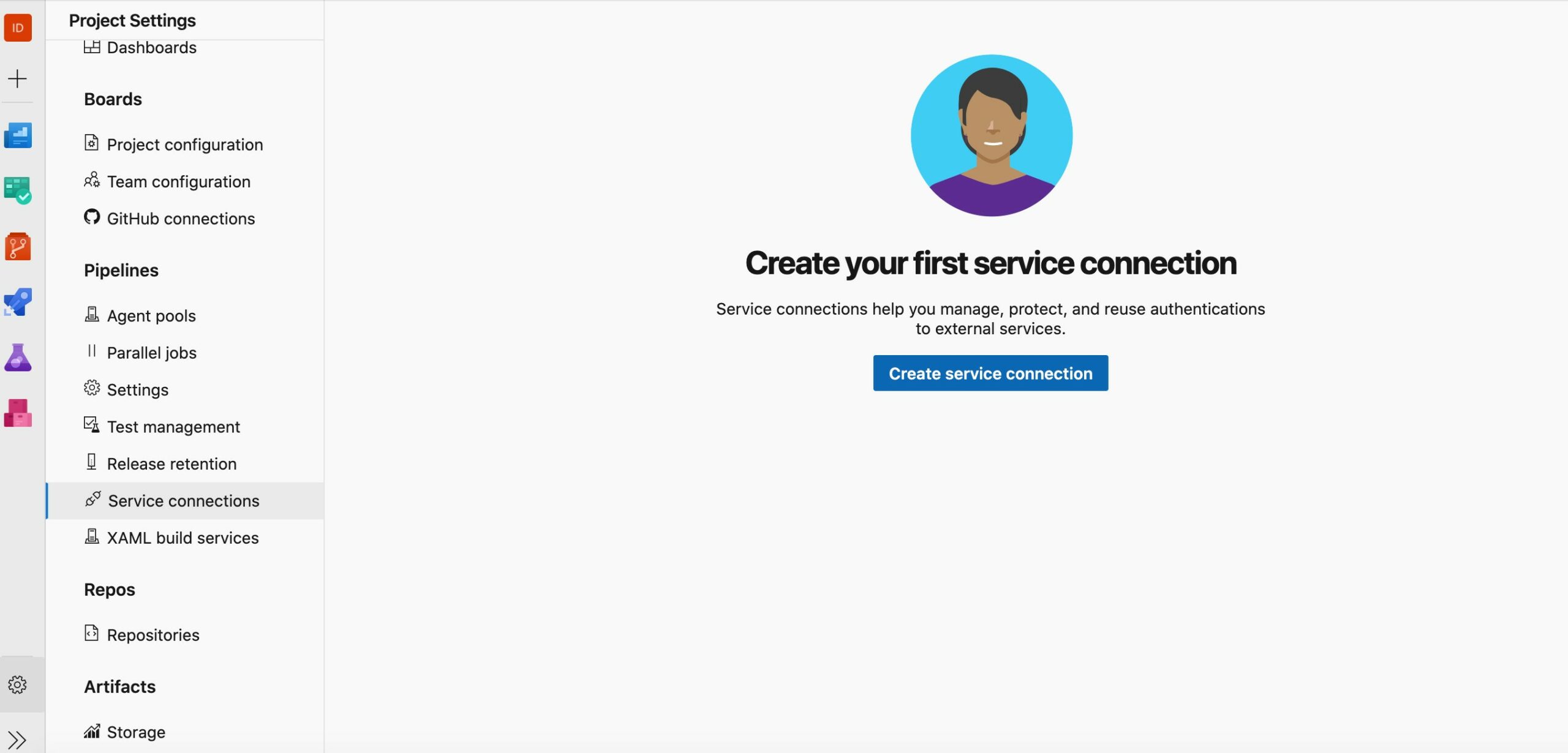
Select SonarQube as the connection type. Click Next.

Enter the values for new SonarQube service connection as shown below and click Save.
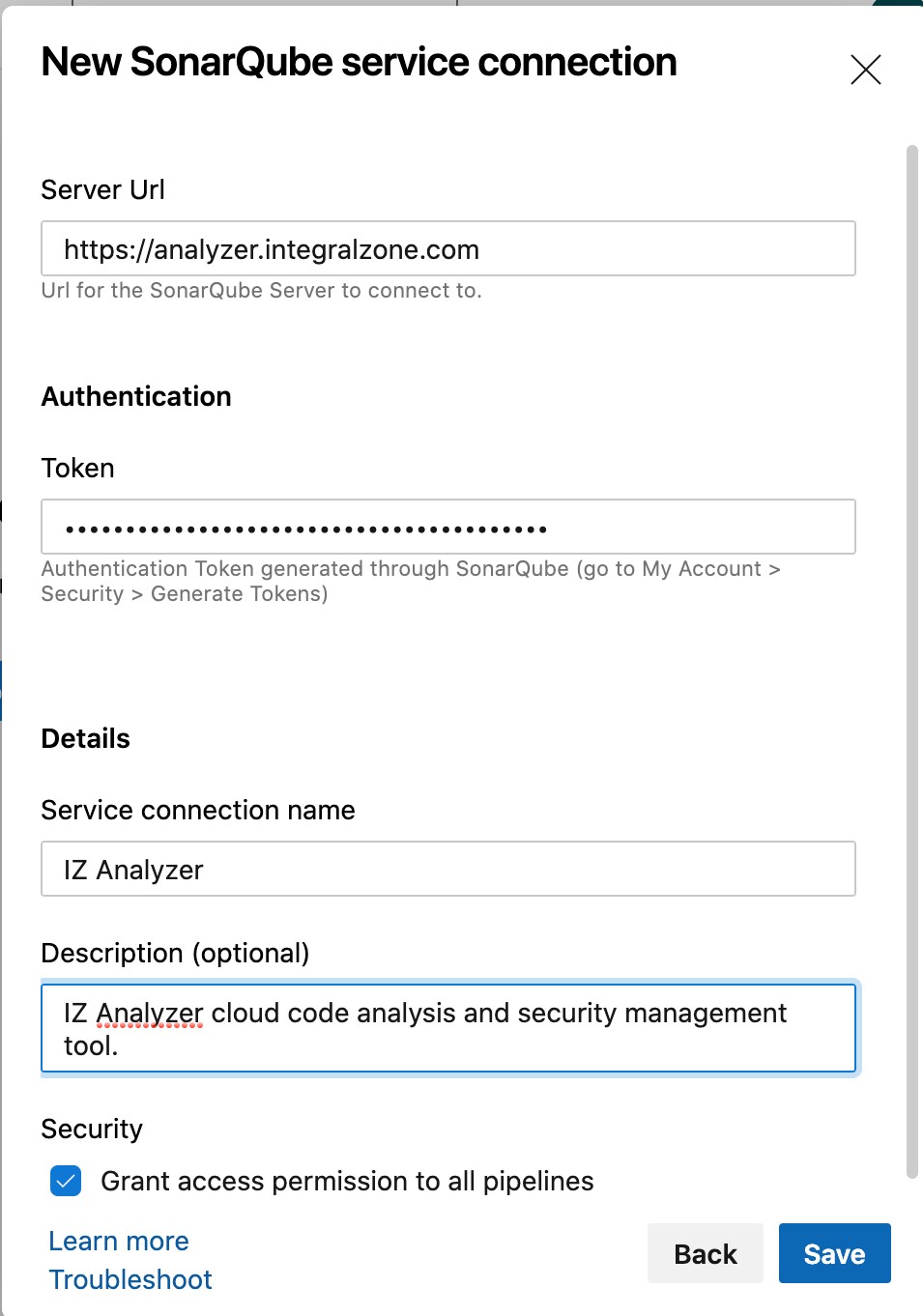
The connection should now be saved and visible under Service connections section as shown below.

Step 6: Create Azure Dev Ops pipelines
In Pipelines, select the option to create new pipeline.

Select where your code is residing. Since it is in the same project, we are going to choose Azure Repos Git. If your code is residing elsewhere, please select the appropriate option and configure it.

Select the repository which will be used in this pipeline. In our case, we are going to select the imported repository from above.
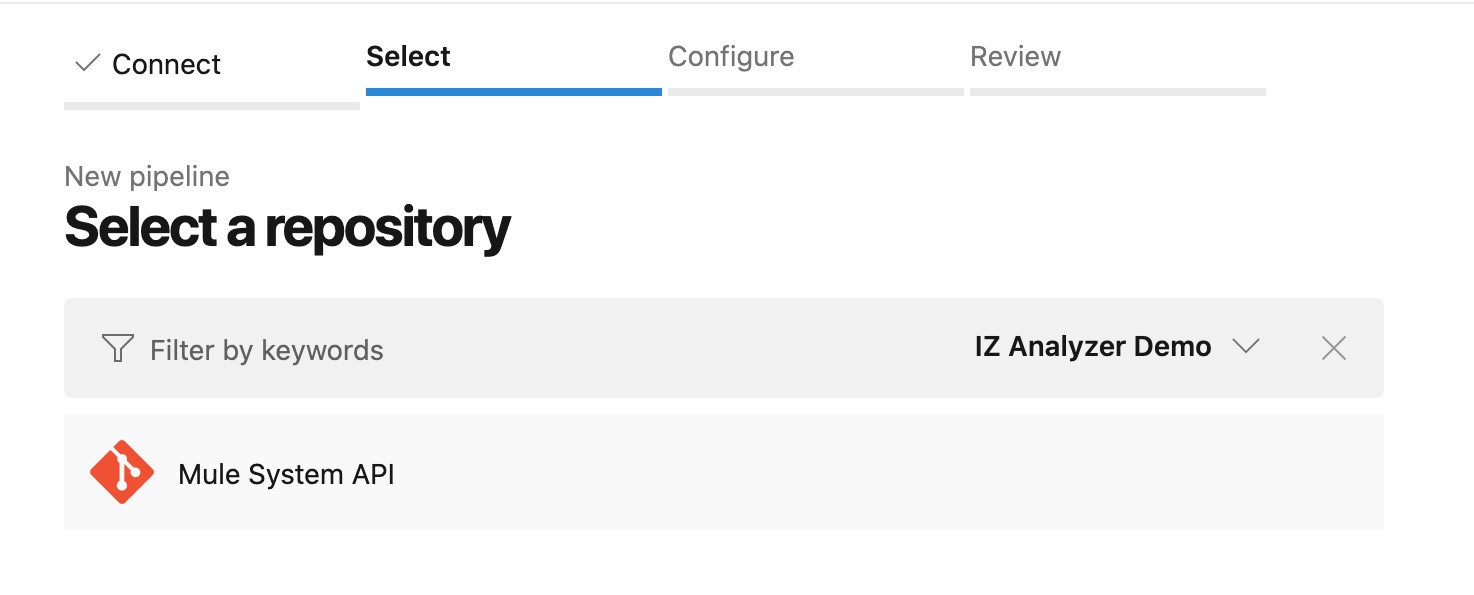
Select the configuration type. You can choose either Maven or the Starter Pipeline. The template is just a placeholder and can be easily edited later.
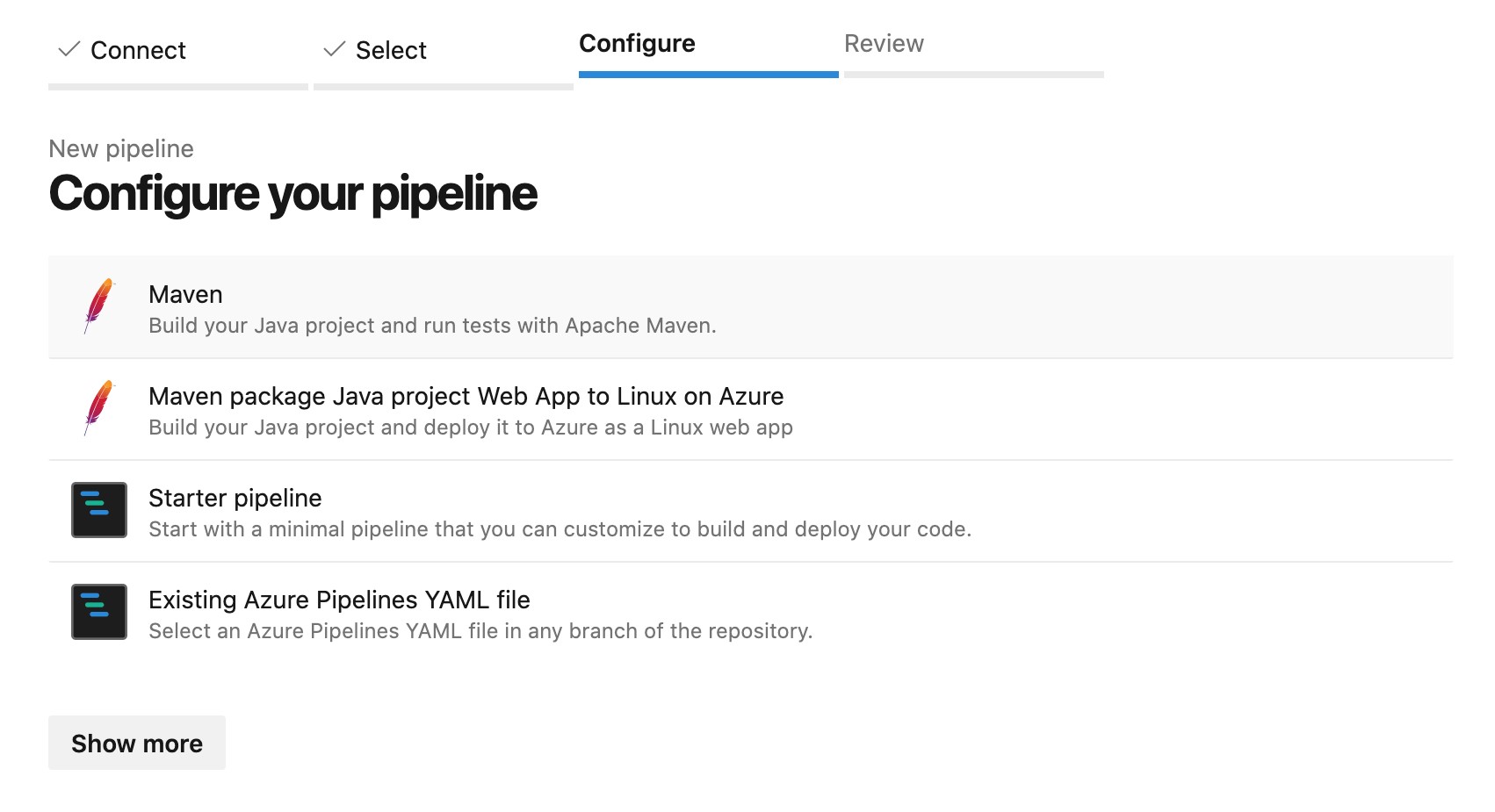
Delete all the unnecessary placeholder under steps section as shown below. Put the cursor below the steps section and click the Show assistant option on the panel to display assistants available. Find the Sonar tasks as shown below. Click on Prepare Analysis Configuration task.

Enter analysis parameters as shown below:

Add the Run code analysis and publish quality gate result tasks one after the other after the prepare task above.

Final generated pipeline should look like below (for Sonar Scanner/Other option):
# Build your Mule project and run code analysis with IZ Analyzer.

trigger:
- master

pool:
  vmImage: ubuntu-latest

steps:
- task: SonarQubePrepare@4
  inputs:
    SonarQube: 'IZ Analyzer'
    scannerMode: 'CLI'
    configMode: 'manual'
    cliProjectKey: 'azure-devops-demo'
    cliProjectName: 'Azure Dev Ops Mule System API'
    cliSources: '.'
    extraProperties: |
      sonar.exclusions=target
      sonar.organization=azure-devops-demo

- task: SonarQubeAnalyze@4
- task: SonarQubePublish@4
  inputs:
    pollingTimeoutSec: '300'
Final generated pipeline should look like below (for Maven Option):
# Build Mule project and publish analysis results to IZ Analyzer

trigger:
- master

pool:
  vmImage: ubuntu-latest

steps:
- task: SonarQubePrepare@4
  inputs:
    SonarQube: 'IZ Analyzer'
    scannerMode: 'Other'
    extraProperties: |
      sonar.exclusions=target
      sonar.organization=azure-devops-demo
      sonar.sources=.
      sonar.projectKey=azure-devops-demo
      sonar.projectName=Azure Dev Ops Mule System API
- task: Maven@3
  inputs:
    mavenPomFile: 'pom.xml'
    mavenOptions: '-Xmx3072m'
    javaHomeOption: 'JDKVersion'
    jdkVersionOption: '1.8'
    jdkArchitectureOption: 'x64'
    goals: 'sonar:sonar'

- task: SonarQubePublish@4
  inputs:
    pollingTimeoutSec: '300'
Once the pipeline configuration is completed, click the option to save and run the configuration.
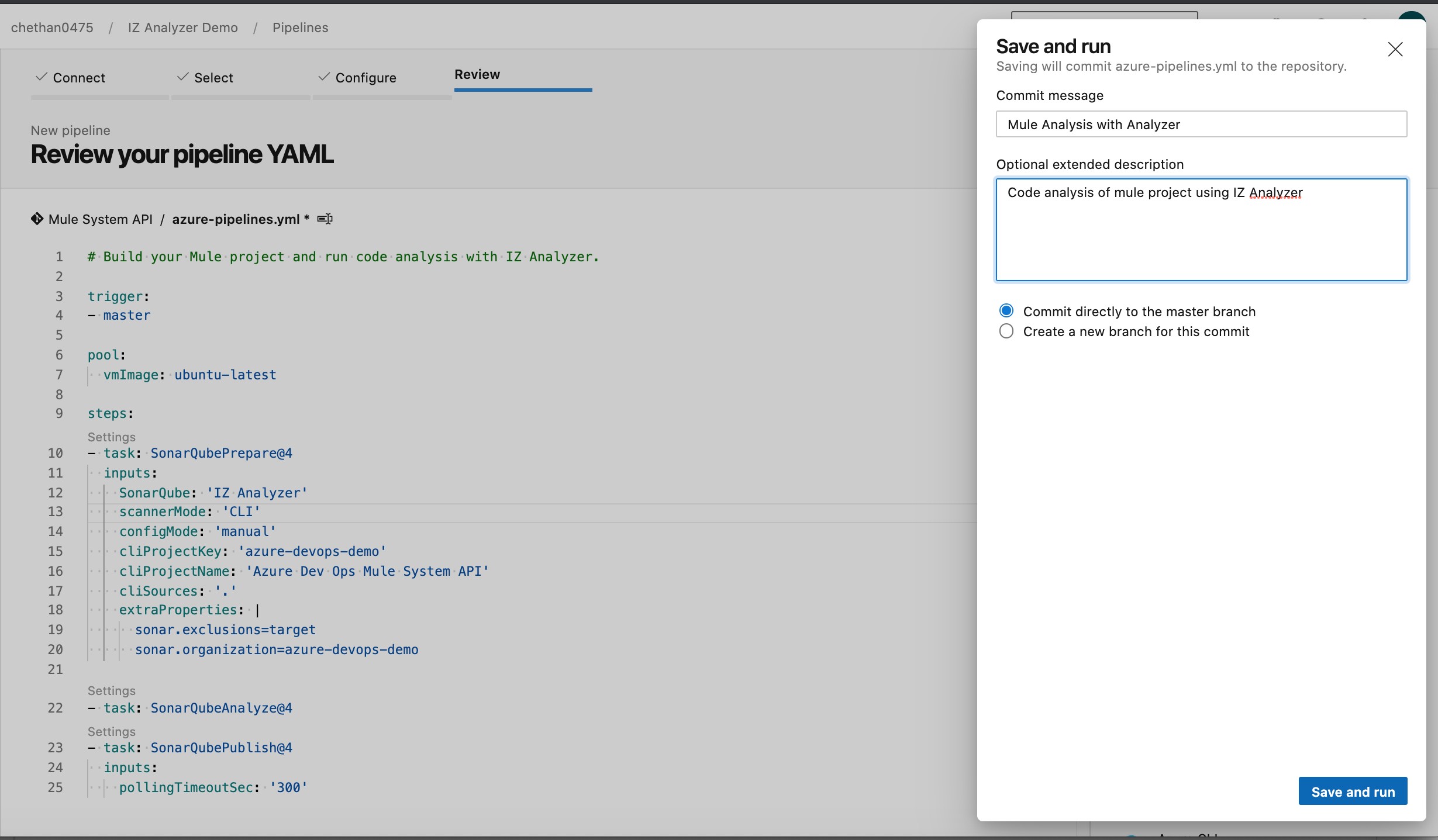
It should trigger the pipeline as shown below:

Step 7: Review Pipeline and Code Quality
If you click on the job which is running, you can see the detailed logs like shown below:
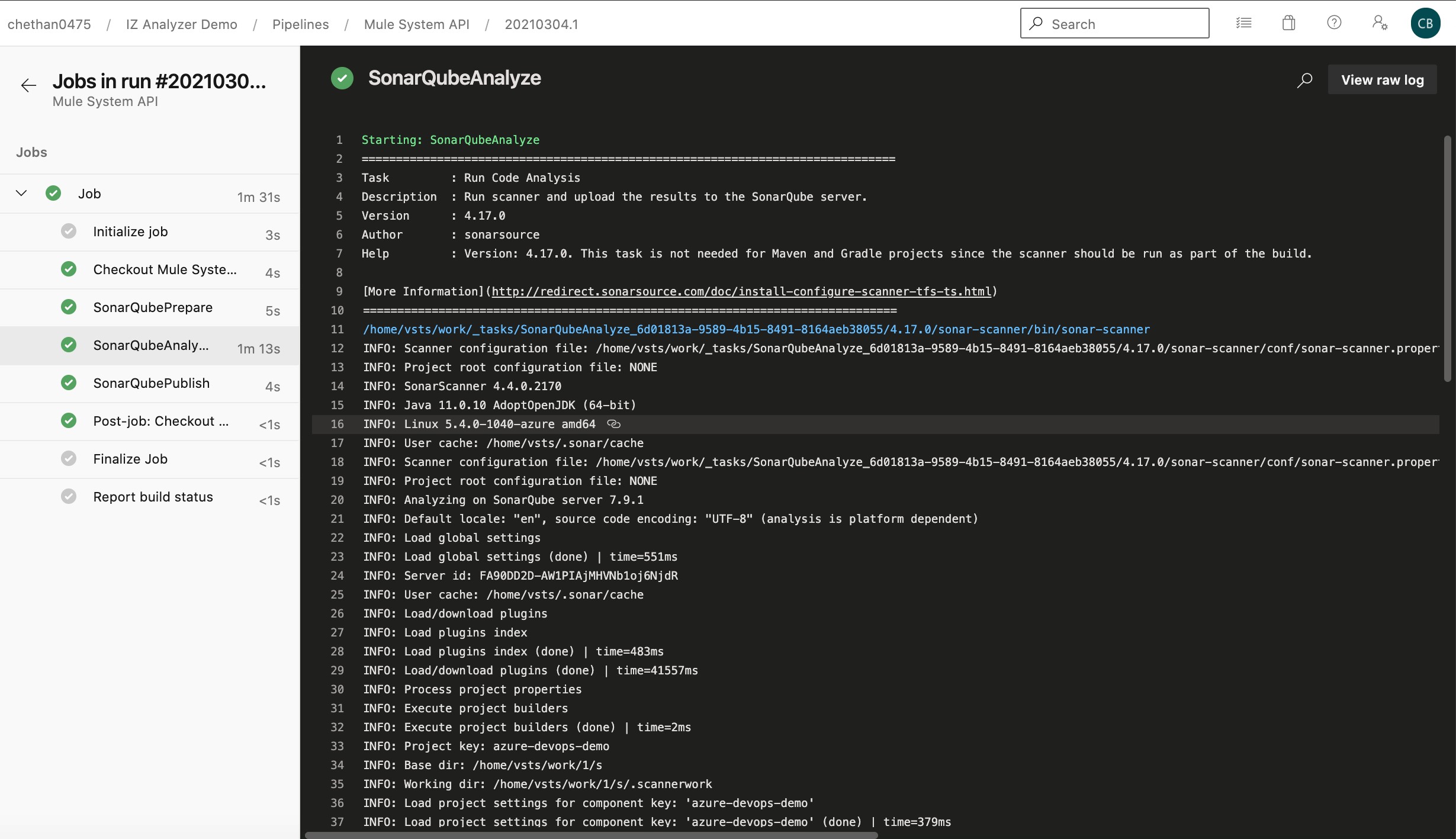
You can see the published sonar reports by visiting the extensions tab of the summary page of pipeline build.

If you click the detailed SonarQube report option, it will take you the actual project analyzer page like below:

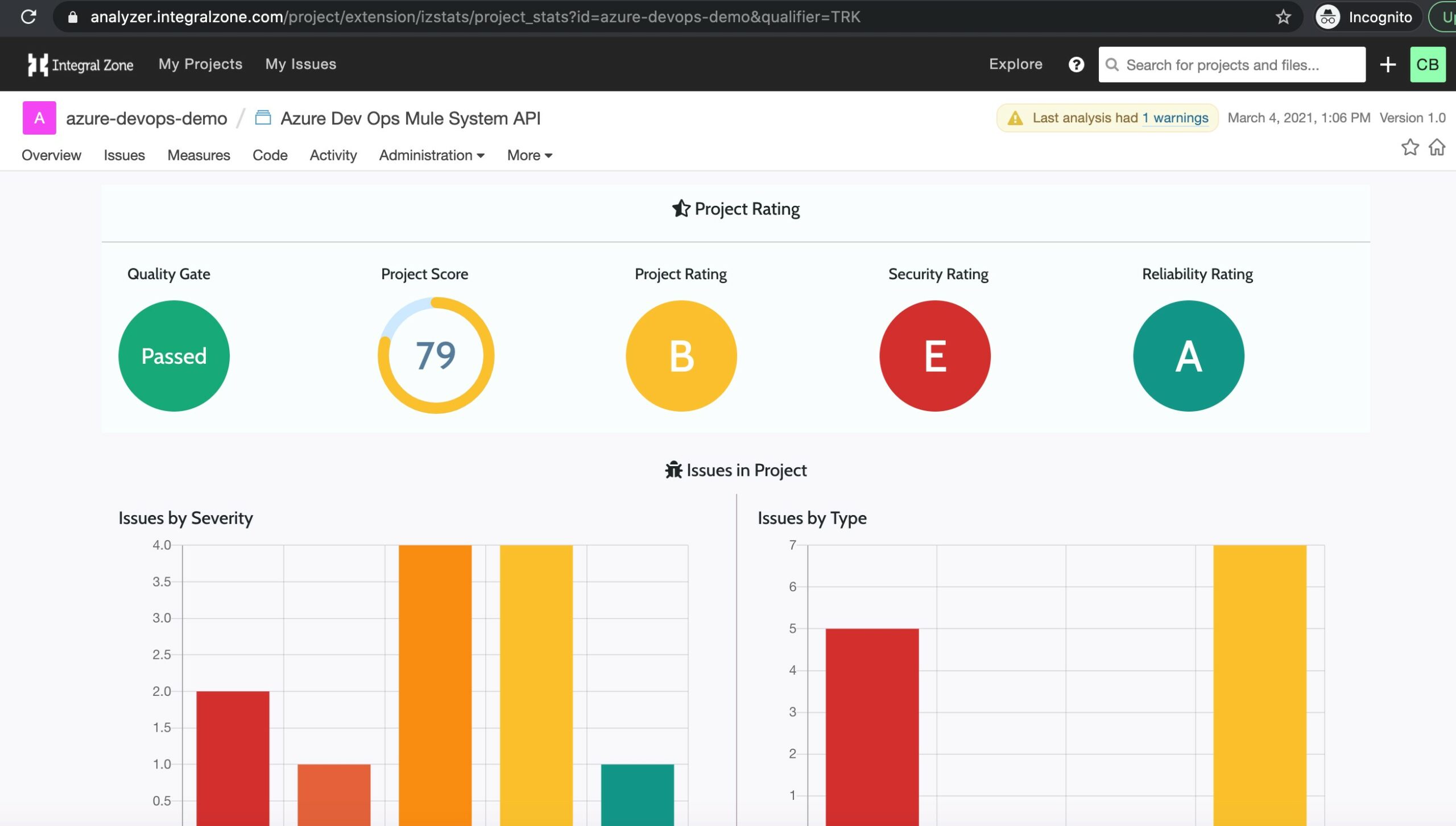
You can get detailed analytics of the mule application from project statistics page:
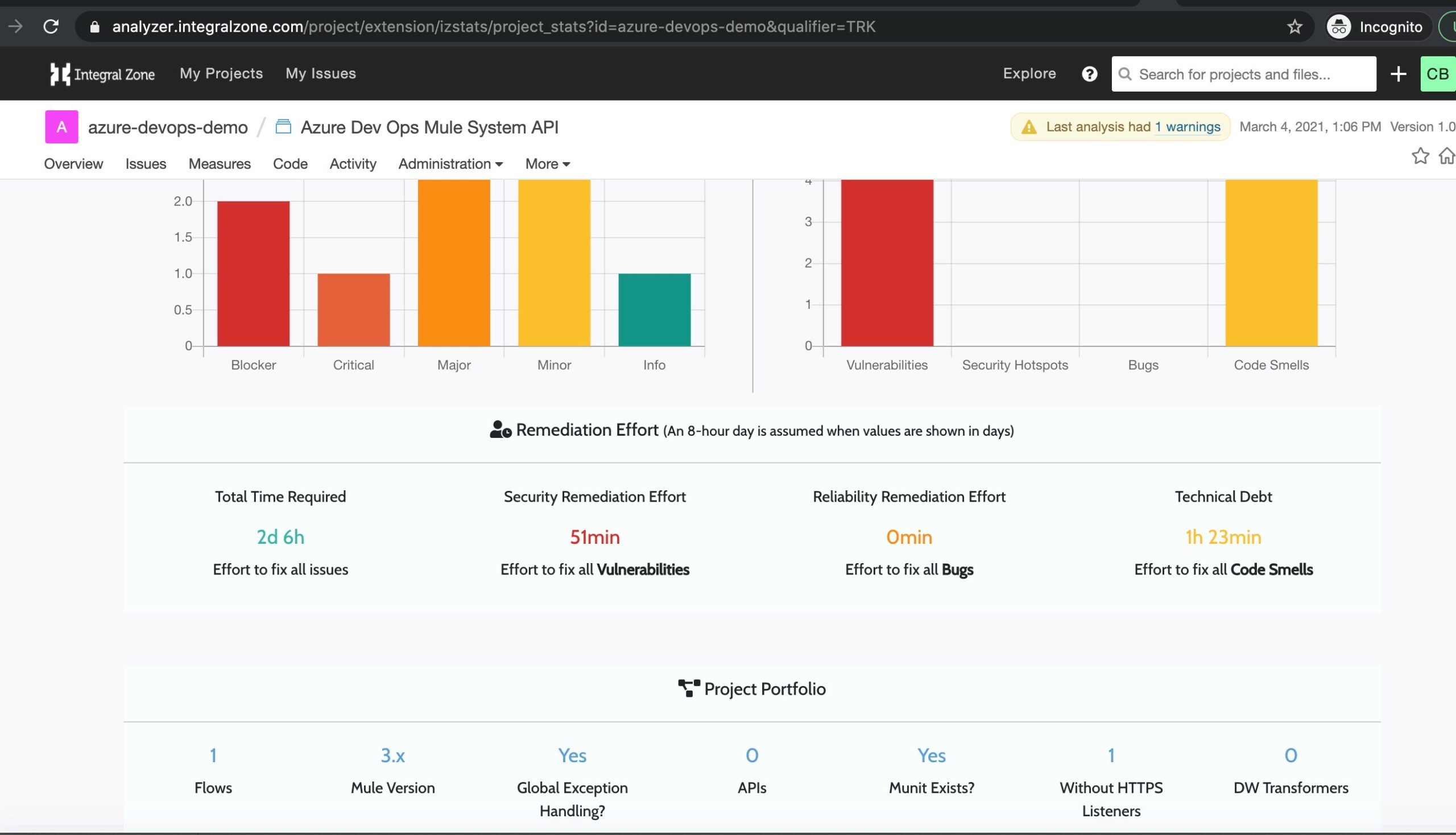
You can check out the remediation efforts and project portfolio information from the project analytics.
Organizational analysis can be obtained through Organization dashboards:
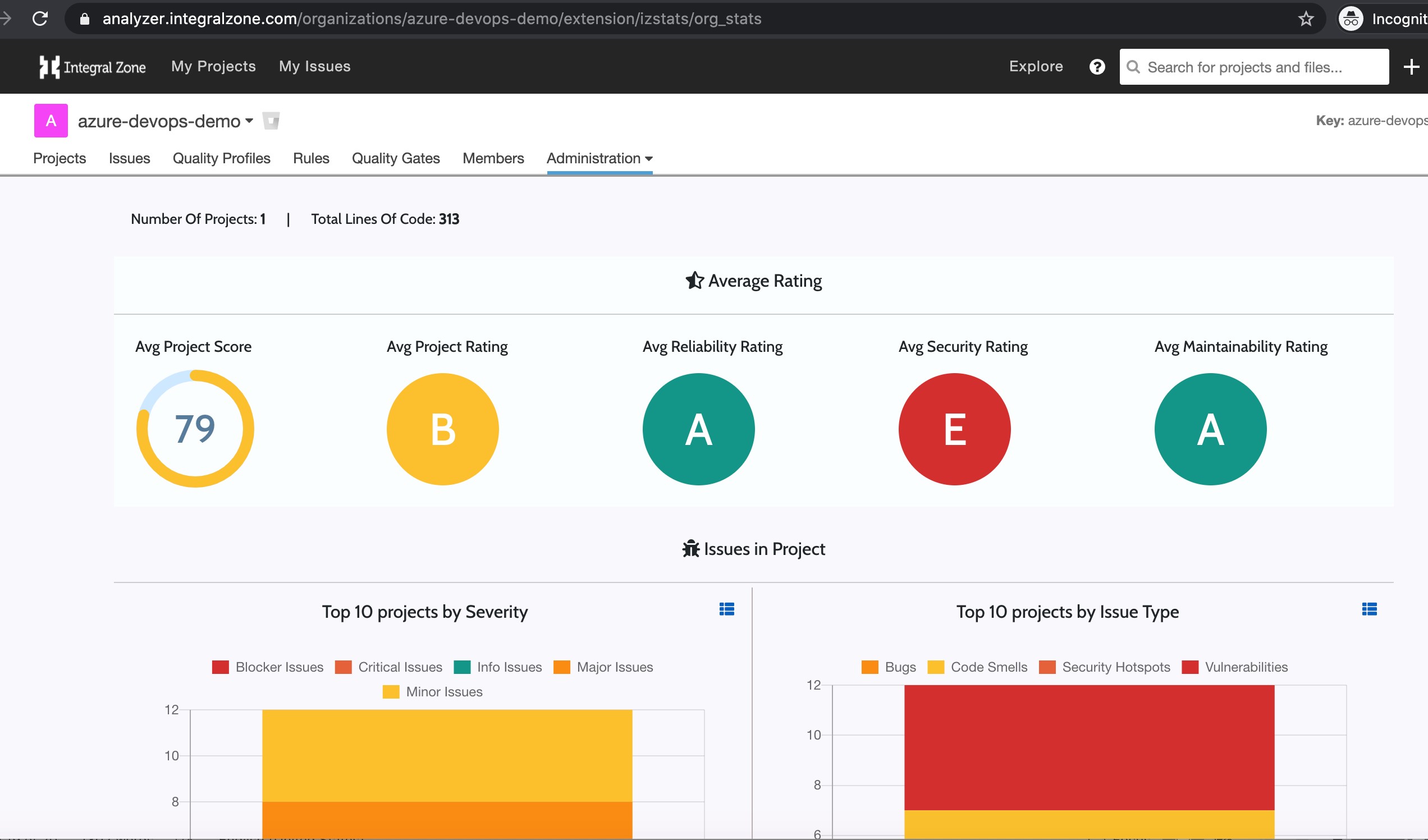
You can query and understand how different lines of business are working and how many projects are non compliant at a glance!

Parting thoughts
Once the code analysis pipeline has been set up, the focus of the organizations should be on setting up more stringent security, compliance rules to check MuleSoft code quality and ensure reliability. As more things are templatized and stricter governance in place, setting up organization and project analytics will help understand the current organization state and to help optimize the MuleSoft code quality/governance further. Azure Dev Ops and IZ Analyzer can be
used to the fullest capability to deliver maximum benefits and help automate compliance/security reports. This should help organizations to optimize their processes further and to deliver business value.
Thanks for reading!
End Note
This Article featured IZ Analyzer, our MuleSoft Code analysis product.
Interested in learning more about IZ Analyzer?
Follow the link below to learn more:
https://integralzone.com/category/code-quality/
Interested in booking an exclusive demo of IZ Analyzer for your team?
Book using the link below:
https://integralzone.com/book-online-demo/
Have a Specific query on IZ Analyzer?
Follow the below link to contact us:
https://integralzone.com/contact/
Discover more from Integral Zone
Subscribe to get the latest posts sent to your email.