
What Is MCP and How It’s Making Developers’ Lives Easier Inside the IDE
When you’re deep in code, the last thing you want to do is switch tools just to answer a simple question.
Yet that’s often what happens — leaving the IDE, opening another UI, searching for issues, then coming back to fix them.
This is exactly the gap the IZ MCP Server addresses. It allows developers to interact with IZ Suite from inside the IDE itself, using IDE-based chat tools such as VS Code Copilot — without repeatedly opening the IZ UI.
What This Means for Developers
- Developers can query IZ issues related to their organization or application directly inside IDE chat
- Developers can scan projects using IZ Scan from within the IDE
- Developers can retrieve scan results and issue details without opening the IZ UI
All of this happens inside the IDE chat, using IZ’s real data
Why Developers Use MCP: Scanning Mule Code for Governance from the IDE
While MCP enables querying IZ data through IDE chat, the primary reason developers use MCP is to scan Mule code for governance and compliance directly from the IDE.
Instead of navigating to the IZ UI to initiate scans, developers can trigger IZ Scan from within the IDE, review results, and act on issues without leaving their coding environment.
This makes governance checks part of day-to-day development, rather than a separate step.
How It Works (High-Level Flow)
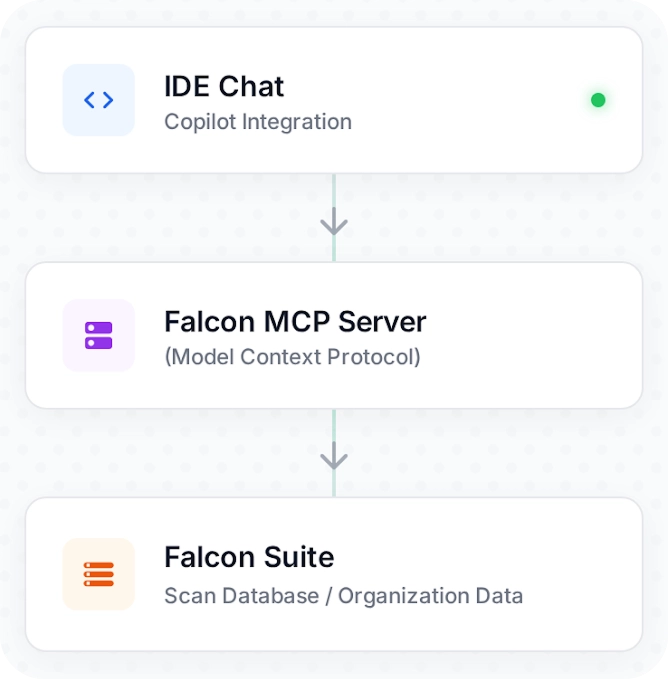
The MCP Server acts as a connection layer between the IDE chat and IZ Suite, allowing IDE copilots to fetch real, organization-specific information from IZ instead of guessing or hallucinating.
The Problem with Using Normal AI Chatbots
To understand why the IZ MCP Server is required, it’s important to first understand the limitations of using normal AI chatbots on their own.
Let’s say a user opens a generic AI chatbot and asks:
“Show me IZ issues in my organization.”
A tool like ChatGPT will not be able to answer this correctly.
Why This Happens
- The AI does not know what IZ is
- It does not know your organization
- It does not have access to IZ Suite data
Because of this, the AI will either:
- Hallucinate an answer, or
- Fail to respond with anything useful
This limitation exists because generic AI tools work only with their own built-in knowledge base. They do not have access to IZ’s scan results, organization data, or issue databases.
Why MCP Is Needed
The IZ MCP Server exists to solve this exact problem.
By connecting an IDE-based AI copilot to IZ Suite’s data, MCP ensures that responses are based on real, organization-specific information instead of guesses.
Without MCP vs With MCP
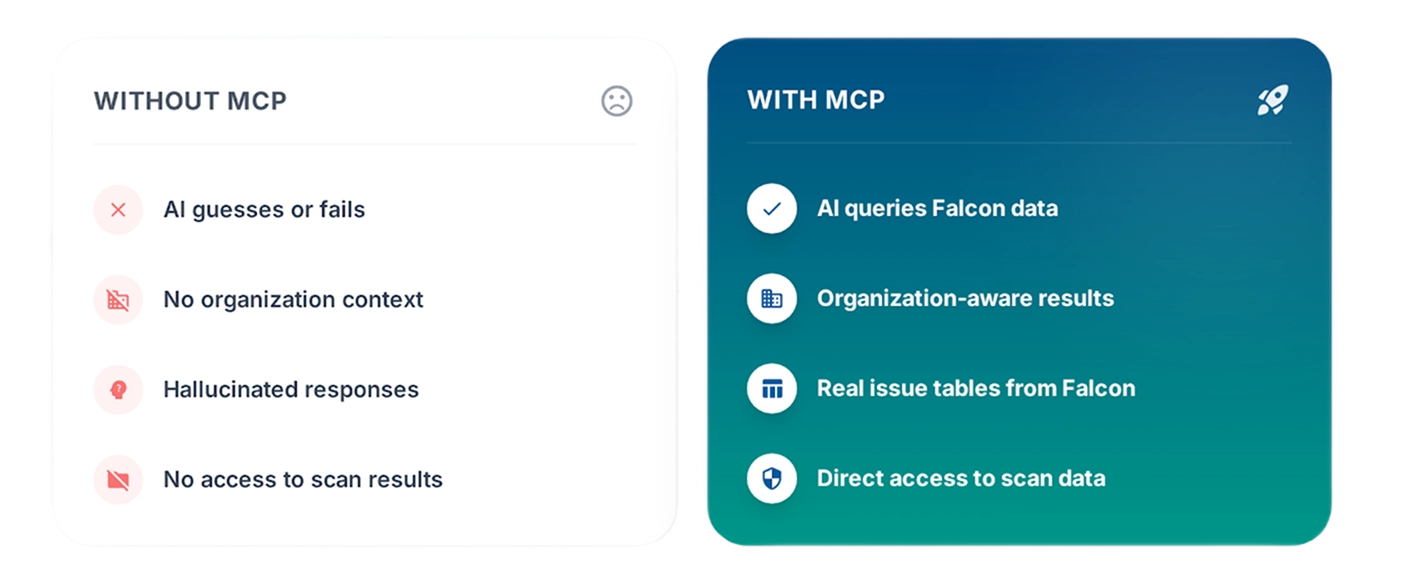
Without MCP, AI cannot reliably answer IZ-related questions.
With MCP, the AI is able to fetch accurate information directly from IZ Suite.
What Is MCP
MCP stands for Model Context Protocol.
In simple terms, the MCP Server works like a plugin or an adapter that connects an IDE-based AI copilot to additional knowledge sources.
On its own, an AI copilot can only search and respond based on its built-in knowledge.
When the MCP Server is enabled, the copilot can also search IZ Suite’s knowledge base.
This means the copilot is no longer limited to what it “knows” by default — it can now retrieve real data from IZ Suite, such as scan results, issues, and organization-specific information.
What MCP Allows an IDE Copilot to Do
With MCP enabled, the IDE copilot can:
- Search its own built-in knowledge base
- Search IZ Suite’s database for relevant information
- Return responses based on actual IZ data, not assumptions
Important Clarification
- MCP is not installed into ChatGPT
- MCP is used inside IDEs, where developers already work (for example, IDE chat tools like Copilot)
This is why MCP works in development environments and not in a standalone chatbot window.
How MCP Fits Into the Flow
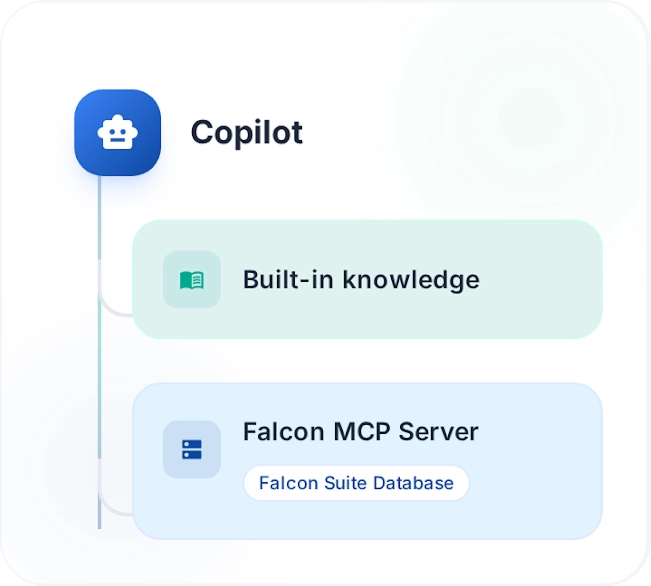
The MCP Server acts as the connection layer that allows the copilot to check IZ Suite’s data alongside its own knowledge before responding.
Where MCP Is Used
To avoid confusion, it’s important to clearly understand where the MCP Server is used — and where it is not.
The IZ MCP Server is used inside IDEs, where developers already write and review code.
It works with IDE-based chat tools, such as Copilot-style chat experiences available in environments like VS Code.
This is the context in which MCP operates.
Where MCP Works
- Inside IDEs
- Through IDE chat interfaces (for example, Copilot-style chat)
- While developers are actively working on their projects
Where MCP Does NOT Work
- MCP is not used directly in the ChatGPT web interface
- It is not installed into browser-based chatbot windows
This distinction matters because MCP relies on the IDE environment to route requests through the IZ MCP Server and into IZ Suite’s data.
Visual Summary
| ✅ IDE Chat | ❌ ChatGPT browser tab |
MCP is designed to support developer workflows inside development environments — not standalone chatbot interfaces.
What IZ MCP Enables for Developers
The IZ MCP Server supports a defined set of actions that were shown and explained during the meeting. These actions allow users to interact with existing IZ Suite data and capabilities directly from within the IDE.
This section lists only those supported actions.
5.1 Query Issues
Using IDE chat, users can query IZ issues in multiple ways, including:
- By organization
- By application
- Across multiple projects within an organization
These queries retrieve issue data that already exists in IZ Suite, based on scans that have been performed.
5.2 View Issues Inside the IDE
When issues are queried through MCP, the results are returned directly inside the IDE chat.
The responses include structured details such as:
- Tables of issues
- File names
- Line numbers
- Issue descriptions
This allows users to immediately understand where the issue exists and what it relates to, without navigating to the IZ UI.
5.3 Trigger IZ Scan from the IDE
The MCP Server can also be used to initiate actions, not just retrieve data.
From within the IDE, MCP can:
- Trigger IZ Scan on a project
- Upload the scan results back to IZ Suite
This mirrors the scanning functionality that exists elsewhere in IZ, but makes it accessible through IDE-based chat.
Important Boundary
- MCP fetches and acts on existing IZ data
- MCP does not invent, guess, or hallucinate results
- All responses are based on actual IZ Suite information
MCP acts as a bridge to IZ’s real data and tools — it does not replace them or generate new information on its own.
How This Interaction Looks
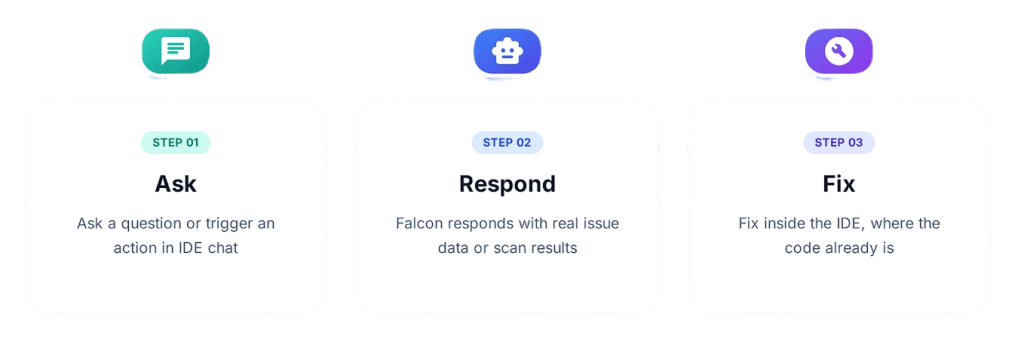
The most common way developers interact with MCP is by using it to trigger IZ Scan and review governance issues directly from the IDE.
How MCP Understands Different Requests
The IZ MCP Server works by exposing a set of supported tools.
Each tool represents a specific IZ action that MCP knows how to perform.
What “Tools” Mean in MCP
In simple terms:
- A tool is an action MCP can execute using IZ Suite
- Each tool maps to something IZ already supports, such as retrieving issues or scanning a project
The MCP Server does not respond randomly.
Instead, it follows a clear process.
How MCP Responds to a Question
When a user types a request in the IDE chat:
- MCP looks at the question
- It finds the closest matching supported tool
- That tool is executed using IZ Suite
- The result is returned to the IDE chat
This is how MCP is able to return relevant results instead of guessing.
Important Accuracy Note
- The list of supported tools is not fixed
- As new capabilities are added, the documentation is updated
- Additional tools can become available over time
This ensures MCP continues to support more IZ actions without changing how users interact with it.
Conceptual View of MCP Tools
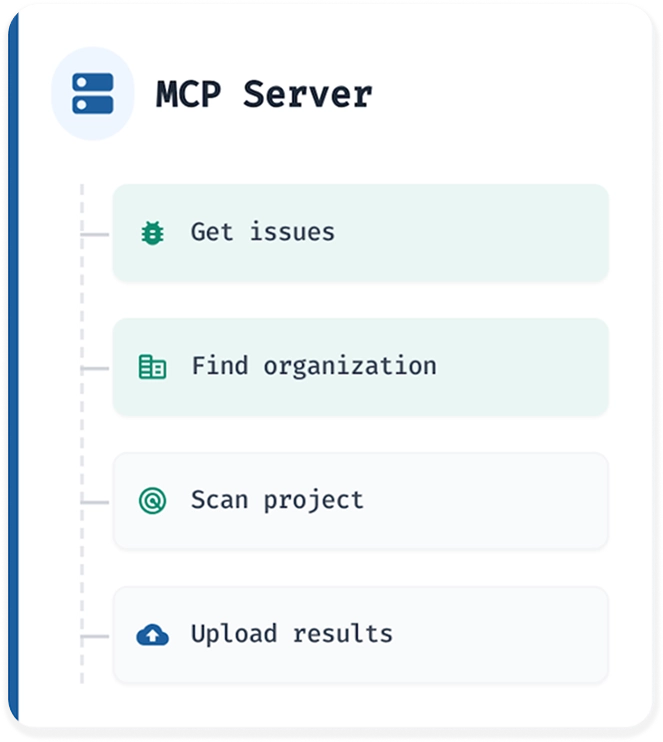
Each of these tools corresponds to a real action supported by IZ Suite, and MCP simply routes requests to the appropriate one.
How MCP Is Enabled
The IZ MCP Server is enabled through a defined setup process. This setup is intentionally structured and documented, rather than automatic.
At a high level, the process involves the following steps.
High-Level Enablement Flow
- Log in to IZ Suite
The user signs in to IZ Suite using their existing account. - Enable the MCP Server
From within IZ Suite, the MCP Server is enabled by navigating to the relevant section and turning it on.
Once enabled, the MCP Server starts running for the user. - Configure the IDE
The user then configures their IDE (such as VS Code) using the documented configuration steps provided.
This setup allows the IDE chat to communicate with the IZ MCP Server. - Start Using MCP in IDE Chat
After configuration is complete, users can begin asking supported questions and triggering supported actions directly from the IDE chat.
Important Note on Setup
- MCP setup involves documented steps
- Configuration is required
- It is not an automatic or “plug-and-play” setup
The documentation provides the necessary guidance to complete this process correctly.
MCP Server vs IZ AI
MCP Server
The MCP Server can be used by:
- Users who are already using IZ Suite
- Users with or without IZ AI
Using MCP Server, users can:
- Query IZ issues across organizations and applications
- Fetch existing scan results from IZ Suite
- Invoke IZ Scan from the IDE and upload results back to IZ Suite
MCP Server does not generate new code or documents.
It allows IDE-based chat tools to interact with existing IZ Suite data and actions.
IZ AI
IZ AI is required for generation-related capabilities.
IZ AI is used when users want to:
- Generate Mule or API code
- Generate RAML specifications
- Generate test cases
- Generate HLD and LLD documentation
These capabilities are not available through MCP Server alone.
| Capability | MCP Server | IZ AI |
| Query IZ issues | ✅ | ✅ |
| Fetch scan results | ✅ | ✅ |
| Invoke IZ Scan | ✅ | ✅ |
| Code generation | ❌ | ✅ |
| Test case generation | ❌ | ✅ |
| HLD / LLD documentation | ❌ | ✅ |
Who Can Use MCP
The IZ MCP Server is not limited to a single role.
As discussed, it can be used by different users based on what they need to query, all from within the IDE environment.
This section clarifies who can use MCP and how, without extending beyond what was stated.
Developers
Developers can use MCP while they are actively working on code.
They can:
- Query IZ issues related to the application or project they are working on
- View issue details inside the IDE, including file names and line numbers
- Fix code directly inside the IDE after reviewing the returned issues
This allows developers to address problems without leaving their development environment.
Architects
Architects can use MCP to get a broader view.
They can:
- Query issues across an organization
- Query issues across multiple applications or projects
This helps architects understand where issues exist without manually navigating through the IZ UI.
Leadership
Leadership users can also make use of MCP, based on what was discussed.
They can:
- Query insights from IZ Suite data using supported questions
These insights are returned based on queried results, not pre-built dashboards or analytics.
Important
- MCP supports query-based access to information
- It does not automatically present dashboards, analytics, or reports
- Information is returned only when a supported query is made
This keeps MCP focused on retrieving real IZ data through IDE-based interaction.
Why This Matters
The IZ MCP Server changes where users access IZ information — not what IZ does.
With MCP enabled, developers can get answers where they already work: inside the IDE.
Instead of switching between tools or repeatedly opening the IZ UI, users can:
- Ask supported questions in IDE chat
- Retrieve real IZ data
- Act on that information immediately
This reduces the need to:
- Switch tools
- Leave the IDE
- Navigate the IZ UI for routine checks
MCP does not replace IZ Suite or add new capabilities on its own.
It simply makes existing IZ data and actions accessible through chat, in the right context.
By bringing IZ information closer to the code, MCP helps users spend less time searching for answers and more time working within their development environment.
What’s New
IZ now supports MCP (Model Context Protocol) Server, enabling users to interact with IZ Suite directly from within their IDE.
With MCP Server enabled:
- Developers can use IDE-based chat tools to query IZ issues, trigger scans, and retrieve results
- Interaction happens inside the IDE, without switching to the IZ UI
- MCP works with IDE copilots, allowing access to real IZ data through chat
This capability is available to IZ Suite users, with or without IZ AI.
For users who have IZ AI enabled, additional generation capabilities are available, such as:
- Code generation
- API / RAML generation
- Test case generation
- HLD and LLD documentation generation
MCP Server makes IZ data accessible through IDE chat, while IZ AI extends this experience with optional generation features.
Discover more from Integral Zone
Subscribe to get the latest posts sent to your email.


